
How to Build a Keyboard Shortcut Custom Hook in React
This article was translated from the Japanese original with AI. 日本語の原文を読む
If you build one custom hook in React, you can add shortcuts such as "/" to move to the search box or Ctrl+K to open a command palette by calling the hook once per shortcut. The hook registers a keydown listener on window with useEffect, and it keeps the key matching and the checks for when not to react inside the hook.
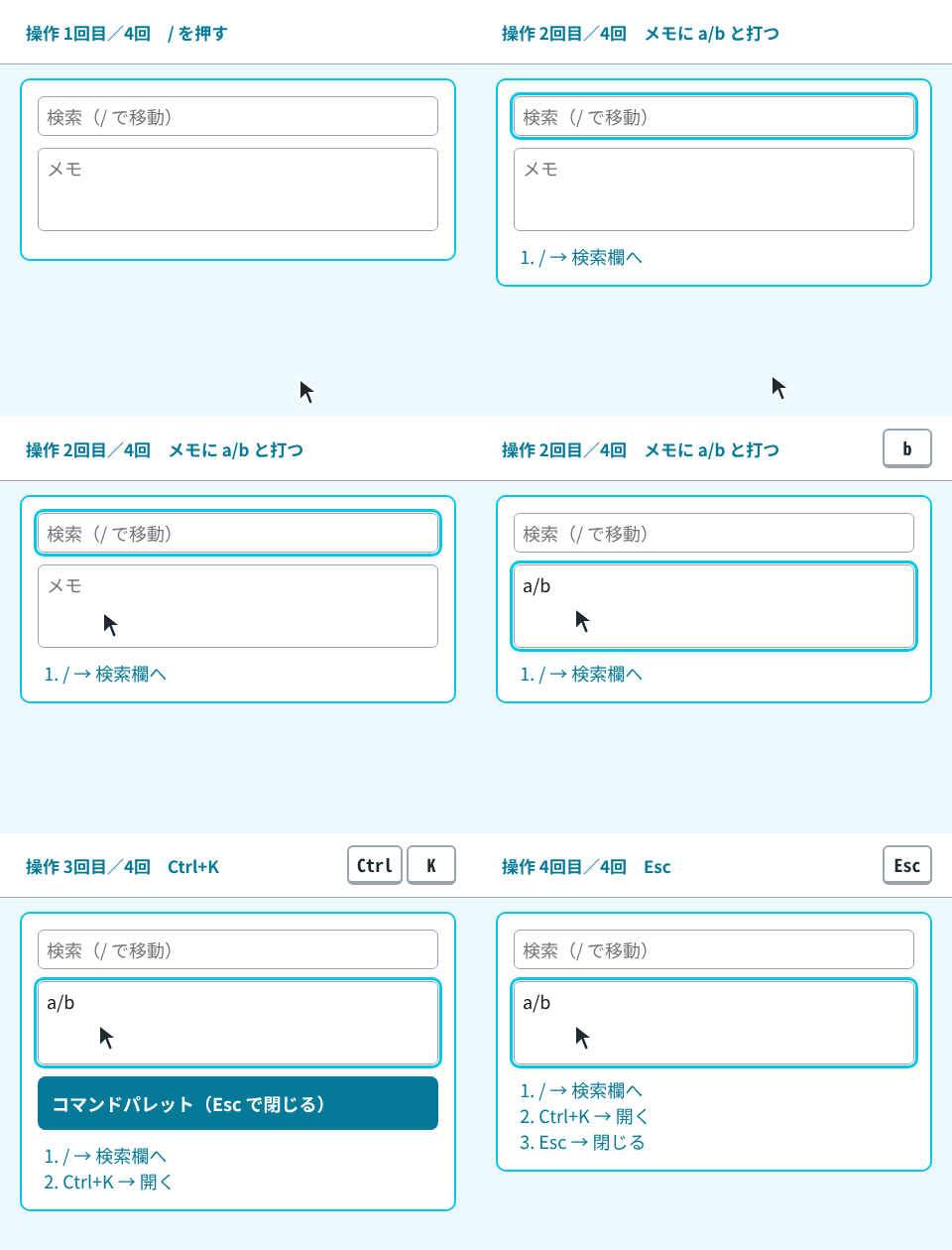
In a test environment, I added shortcuts to a small screen with a search box, a memo field, and a palette. I then sent key input to Chromium with Playwright to check how they behaved.
The test environment was Ubuntu 24.04 and Node.js 22.22.0. I used react / react-dom 19.3.1, @types/react 19.3.0, typescript 7.0.2, and esbuild 0.28.2. I type-checked the .tsx file with tsc, transpiled it with esbuild, and operated Chromium 141 with Playwright 1.56.1. I did not use StrictMode. I have not tried it on a real Mac or in other browsers.
Register the listener once with useEffect, and wrap the handler that runs on key press with useEffectEvent so it reads the latest props and state. Keys pressed inside an input field, key repeat while a key is held, and keys pressed during Japanese IME composition are not treated as shortcuts.
- 1. The Whole Shortcut Hook
- 2. Register Once and Read the Latest Values
- 3. Do Not React Inside Input Fields
- 4. Stop the Default Action When Moving with "/"
- 5. Compare Keys by
key, and Check Modifier Keys Too - 6. Ignore Key Repeat and Japanese IME Composition
- 7. Keys That Work in Input Fields, and Keys That Stop the Default Action
The Whole Shortcut Hook
This is the hook I used in the test. Keys are specified with strings such as '/', 'mod+k', and 'shift+n'. I made mod accept either Ctrl or ⌘ (Meta).
import { useEffect, useEffectEvent } from 'react';

export type ShortcutOptions = {
  enabled?: boolean; // do not register while false
  allowInInput?: boolean; // whether to react while typing in an input field
  allowRepeat?: boolean; // whether to react to key repeat while held down
  preventDefault?: boolean; // whether to stop the browser's default action
};

type Combo = { key: string; mod: boolean; shift: boolean; alt: boolean };

// Splits "mod+k" or "shift+n". mod means either Ctrl or ⌘ (Meta)
function parseCombo(combo: string): Combo {
  const parts = combo.toLowerCase().split('+');
  const key = parts.pop() ?? '';
  return { key, mod: parts.includes('mod'), shift: parts.includes('shift'), alt: parts.includes('alt') };
}

function matches(e: KeyboardEvent, c: Combo): boolean {
  return (
    e.key.toLowerCase() === c.key &&
    (e.ctrlKey || e.metaKey) === c.mod &&
    e.shiftKey === c.shift &&
    e.altKey === c.alt
  );
}

// whether the key was pressed inside an input field or contenteditable
function isTyping(target: EventTarget | null): boolean {
  if (!(target instanceof HTMLElement)) return false;
  return target.isContentEditable || target.matches('input, textarea, select');
}

export function useKeyboardShortcut(
  combo: string,
  handler: (e: KeyboardEvent) => void,
  { enabled = true, allowInInput = false, allowRepeat = false, preventDefault = true }: ShortcutOptions = {},
) {
  // Uses the latest handler and options at the time of the press, without re-registering
  const onKeyDown = useEffectEvent((e: KeyboardEvent) => {
    // Ignore keys pressed during Japanese IME composition (keyCode 229 is a key the IME is handling)
    if (e.isComposing || e.keyCode === 229) return;
    if (e.repeat && !allowRepeat) return;
    if (!allowInInput && isTyping(e.target)) return;
    if (!matches(e, parseCombo(combo))) return;
    if (preventDefault) e.preventDefault();
    handler(e);
  });

  useEffect(() => {
    if (!enabled) return;
    window.addEventListener('keydown', onKeyDown);
    return () => window.removeEventListener('keydown', onKeyDown);
  }, [enabled]);
}
To use it, you just call the hook inside a component. The following is the shortcut part extracted from the screen I used for testing. Shift+N is the shortcut that clears the memo field.
// Moves to the search box on "/". Does not react to "/" typed inside an input field
useKeyboardShortcut(
  '/',
  () => {
    searchRef.current?.focus();
    record('/ → 検索欄へ');
  },
  { preventDefault: slashPreventDefault },
);
// Opens and closes the palette on Ctrl+K (⌘K on Mac). Also reacts inside input fields
useKeyboardShortcut(
  'mod+k',
  () => {
    setOpen((o) => !o);
    record(open ? 'Ctrl+K → 閉じる' : 'Ctrl+K → 開く');
  },
  { allowInInput: true },
);
// Closes on Esc. Registered only while the palette is open
useKeyboardShortcut(
  'escape',
  () => {
    setOpen(false);
    record('Esc → 閉じる');
  },
  { enabled: open, allowInInput: true },
);
// Clears the memo on Shift+N
useKeyboardShortcut('shift+n', () => {
  setMemo('');
  record('Shift+N → メモを空に');
});
record is a test helper that adds the shortcut that fired to the on-screen list. slashPreventDefault is a prop for comparing with and without preventDefault later. Normally it is true.
Register Once and Read the Latest Values
The handler called by a shortcut usually reads state. To compare, I built a screen that records count when L is pressed, in three ways. I pressed the +1 button three times, then pressed L, and counted how many keydown listeners were added to window and how many were removed during that time.
effect-event: {"count":"count: 3","logged":"L で記録した値: 3","added":1,"removed":0}、外したあとに登録中のリスナー 0
deps: {"count":"count: 3","logged":"L で記録した値: 3","added":5,"removed":4}、外したあとに登録中のリスナー 0
empty-deps: {"count":"count: 3","logged":"L で記録した値: 0","added":1,"removed":0}、外したあとに登録中のリスナー 0
The first line is the hook in this article. It registered only once, and the value recorded when L was pressed was 3. The second line puts handler in the dependency array. The values were correct, but because handler becomes a new function on every render, there were 4 cases of removing and registering again after the first registration: 3 renders after pressing +1, and 1 render after the recorded value changed when L was pressed. The third line uses an empty dependency array. It registered only once, but it kept reading count from the first render and recorded 0. In none of the approaches were any listeners left over after the component was unmounted.
useEffectEvent is a hook that was added in React 19.2 (React 19.2 release post). The official reference example for using it in a custom hook also wraps the received callback with useEffectEvent, so that useEffect does not rerun even when a new function is passed each time. As the caveats on the same page say, the wrapped function is a different function on every render, so it is not put in the dependency array. Registration and removal are done inside the same useEffect, using the same function, as in the official reference example with a window event listener. I also compared these three dependency-array variants in an earlier article on reading the latest values without re-running effects with useEffectEvent.
For a shortcut that should work only while the palette is open, such as Esc, switch the registration itself with enabled. In the test, 3 listeners (/, Ctrl+K, Shift+N) were registered before the palette was opened, 4 while it was open, and it went back to 3 after it was closed.
Do Not React Inside Input Fields
When you listen to keydown on window, keys typed into input fields also arrive. According to the MDN keydown page, the event's target is the focused element, which includes input fields and contenteditable elements. So I check target with isTyping and do nothing if the event comes from inside an input field.
This is the result of clicking the memo field, typing a/b, and then pressing Shift+N.
メモの欄で a/b と Shift+N を打ったあと: {"focused":"memo","search":"","memo":"a/bN","dialog":false,"log":[]}Neither "/" nor Shift+N became a shortcut. They were entered into the memo as plain text. On the other hand, Ctrl+K and Esc are set with allowInInput: true. Even while in the memo field, Ctrl+K opened the palette, and Meta+K (the key corresponding to ⌘K on Mac) closed it. After opening it again with Ctrl+K, pressing Esc in the memo field also closed the palette. I made only the combinations that are not used for typing work inside input fields.
Stop the Default Action When Moving with "/"
With nothing selected, I pressed "/" and compared the results with and without preventDefault.
preventDefault あり: {"focused":"search","search":"","memo":"","dialog":false,"log":["/ → 検索欄へ"]}
preventDefault なし: {"focused":"search","search":"/","memo":"","dialog":false,"log":["/ → 検索欄へ"]}
Both moved focus to the search box, but without calling preventDefault, the "/" that was pressed was entered into the search box as well. Because I moved focus inside the keydown handler, the "/" character seems to have been typed into the search box that received focus. For this reason, the hook calls preventDefault by default. I confirmed that preventDefault was called for Ctrl+K and Esc too (defaultPrevented was true). However, this test did not check whether the browser's own Ctrl+K action is stopped.
Compare Keys by key, and Check Modifier Keys Too
According to the MDN KeyboardEvent.key page, key is the value that reflects modifier keys such as Shift and the keyboard layout. In the test too, key was "N" when I pressed Shift+N. So I normalize with toLowerCase() before comparing, and check Shift separately with shiftKey.
k と n だけを押したあと: {"focused":"BODY","search":"","memo":"","dialog":false,"log":[]}
Shift+N を押したあと: {"focused":"BODY","search":"","memo":"","dialog":false,"log":["Shift+N → メモを空に"]}
Because modifier keys are compared too, pressing only k or n does not trigger a shortcut. mod is compared with ctrlKey || metaKey. On Chromium on Linux, pressing Meta+K reacted the same way as Ctrl+K. I have not tested what happens when pressing ⌘K on a Mac.
If you want to decide by key position (such as WASD in games), you can use code, which does not depend on the layout, as described on the MDN KeyboardEvent.code page. The hook in this article specifies keys by the character printed on them, so I used key. I have not tested keyboards with layouts other than English. Also, because this hook compares whether Shift is pressed, symbols typed with Shift (such as ?) cannot be specified with this approach.
Ignore Key Repeat and Japanese IME Composition
When a key is held down, keydown events keep arriving. According to the MDN KeyboardEvent.repeat page, repeat is true for those events. When I sent three keydown events for K while holding Ctrl, the second and third had repeat: true, and the palette opened only once. If a toggle shortcut reacts to repeats, the result changes depending on how long the key is held. When you want repeats, such as for a shortcut that moves the cursor, set allowRepeat: true. Note that for repeated keydown events, this hook does not call preventDefault either. In the test, defaultPrevented was false for the second and third events too.
When typing Japanese, keydown also arrives for keys pressed during conversion. The IME section on the MDN keydown page recommends checking whether keyCode is 229 in addition to isComposing, to ignore keydown events during composition. This is because keys at the start and end of composition can arrive with isComposing still false. keyCode is deprecated, but MDN suggests checking it alongside in this situation.
In the test, I sent a Ctrl+K keydown created with new KeyboardEvent() from a script to the page. When I sent it with isComposing: true or keyCode: 229, the palette did not open. When I sent it the same way without either, the palette opened. I could not run Japanese input (IME) in this environment, so I have not checked the behavior during actual conversion.
Keys That Work in Input Fields, and Keys That Stop the Default Action
Keys such as "/" or Shift+N that are also used for typing do not react inside input fields. Only combinations not used for typing, such as Ctrl+K or Esc, are set with allowInInput: true so that they work inside input fields too. For shortcuts that move focus, such as "/", call preventDefault so that the pressed key is not entered into the field it moves to.