
git cleanで、追跡していないファイルをまとめて消す方法
試しに作ったメモや、ビルドで出来たファイルが作業フォルダに残って、git status が見づらくなることがあります。git clean を使うと、Git が追跡していないファイル(untracked files)をまとめて削除して、作業フォルダを片付けられます。コミットしてあるファイルの変更には触れないので、書きかけの変更は残ります。
検証環境は Ubuntu 24.04、Git 2.43.0 です。作者の名前とメールアドレスには例示用の値(Neko <neko@example.com>)を設定しました。リポジトリは検証用に作ったものだけで、Windows・macOS では試していません。
片付ける前の作業フォルダ
README.md、index.html、.gitignore の3つをコミットしたリポジトリで試しました。.gitignore には、node_modules/ と *.log を書いてあります。
$ cat .gitignore
node_modules/
*.log

$ git log --format='%h %an <%ae> %s'
de16aeb Neko <neko@example.com> 最初のコミットここに、コミットしていないものを4種類用意しました。index.html に1行足した変更、新しく作った memo.txt、新しいフォルダ drafts/ とその中の idea.md、.gitignore で無視している debug.log と node_modules/ です。
$ git status --short
 M index.html
?? drafts/
?? memo.txt

$ git status --short --ignored
 M index.html
?? drafts/
?? memo.txt
!! debug.log
!! node_modules/
git status の公式リファレンスのとおり、?? が付いたものが、Git が追跡していないファイルです。.gitignore で無視しているファイルは、--ignored を付けたときだけ !! 付きで表示されます。
以降の節では、前の節で消したファイルをもう一度作ってから試しています(index.html の変更はそのまま残しています)。
-n で消えるものを確かめてから、-f で消す
何も付けずに git clean を実行すると、何も消さずに止まります。
$ git clean
fatal: clean.requireForce defaults to true and neither -i, -n, nor -f given; refusing to clean
git clean の公式リファレンスによると、設定の clean.requireForce は初めから true で、このときは -f(強制)、-i(対話)、-n(試すだけ)のどれかを付けないと動きません。
先に -n を付けて、何が消えるかだけを表示させます。-n を付けると、実際には何も消しません。
$ git clean -n
Would remove memo.txt

$ git clean -n -d
Would remove drafts/
Would remove memo.txt
-n だけでは memo.txt しか出ず、drafts/ は対象になりませんでした。追跡していないフォルダの中まで消すには、-d が要ります。公式リファレンスでは、消しすぎないように、パスを指定しないときは -d がなければ追跡していないフォルダの中には入らないと説明されています。
表示された内容でよければ、-n を -f に替えて消します。
$ git clean -f -d
Removing drafts/
Removing memo.txt

$ git status --short --ignored
 M index.html
!! debug.log
!! node_modules/

$ cat index.html
<h1>ねこノート</h1>
<p>新しい記事の一覧</p>
memo.txt と drafts/ が消えました。index.html に足した行は残っています。.gitignore で無視している debug.log と node_modules/ も、このままでは消えません。
git clean で消したファイルは、Git では取り戻せませんでした。消したあとに git restore memo.txt を実行しても、error: pathspec 'memo.txt' did not match any file(s) known to git と表示されるだけでした。消す前に、必ず -n で確かめてください。
.gitignore で無視しているファイルも消す(-x と -X)
ビルドで出来たファイルや node_modules/ のように、.gitignore で無視しているファイルを消したいときは、-x か -X を付けます。2つの違いは、消す範囲です。消した memo.txt と drafts/ を作り直し、無視しているファイルと合わせて4つある状態から試しました。
$ git status --short --ignored
 M index.html
?? drafts/
?? memo.txt
!! debug.log
!! node_modules/

$ git clean -n -d -X
Would remove debug.log
Would remove node_modules/

$ git clean -n -d -x
Would remove debug.log
Would remove drafts/
Would remove memo.txt
Would remove node_modules/
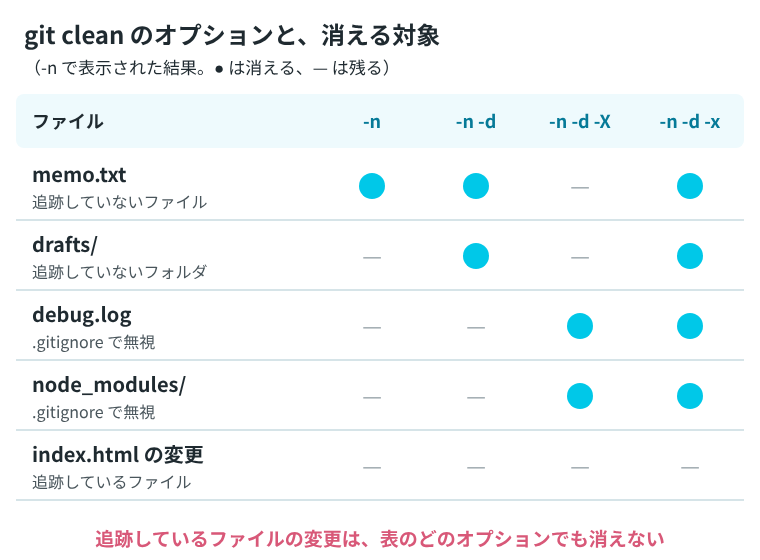
大文字の -X は、無視しているファイル(debug.log と node_modules/)だけを消します。手で作った memo.txt や drafts/ は残ります。小文字の -x は、無視しているファイルも追跡していないファイルも、まとめて消します。公式リファレンスでも、-X は手で作ったファイルを残して作り直したいとき、-x はビルドで出来たものも含めて全部消したいときに使えると説明されています。
-X で実際に消すと、無視していたものだけがなくなりました。
$ git clean -f -d -X
Removing debug.log
Removing node_modules/

$ git status --short --ignored
 M index.html
?? drafts/
?? memo.txt
ここまでのオプションと、消える対象をまとめると次のようになります。
残したいものを -e で外す
消したくないファイルがあるときは、-e で除外するパターンを渡します。ここでも、消したファイルを作り直してから試しました。
$ git clean -n -d -e memo.txt
Would remove drafts/

$ git clean -n -d -x -e node_modules/
Would remove debug.log
Would remove drafts/
Would remove memo.txt
-e memo.txt を付けると、memo.txt が対象から外れました。2つめは、-x で全部消すけれど node_modules/ だけは残したい、という指定です。公式リファレンスによると、-x は .gitignore の規則を使わなくなりますが、-e で渡した規則は使います。
決まったフォルダの中だけ消す
-- のあとにパスを書くと、そのパスに合うものだけが対象になります。
$ git clean -n -d -- drafts/
Would remove drafts/

$ git clean -f -d -- drafts/
Removing drafts/

$ git status --short
 M index.html
?? memo.txt
drafts/ だけが消え、memo.txt は残りました。
-i で、1つずつ聞きながら消す
-i を付けると、消す候補を表示してから、どうするかを聞いてきます。4: ask each を選ぶと、1つずつ消すかどうかを確かめられます。drafts/ と memo.txt を作り直してから、4 を選び、drafts/ には y、memo.txt には n と答えました。答えはパイプで渡したので、入力した文字は表示されていません。
$ git status --short
 M index.html
?? drafts/
?? memo.txt

$ printf '4\ny\nn\n' | git clean -i -d
Would remove the following items:
  drafts/   memo.txt
*** Commands ***
    1: clean                2: filter by pattern    3: select by numbers
    4: ask each             5: quit                 6: help
What now> Remove drafts/ [y/N]? Remove memo.txt [y/N]? Removing drafts/

$ git status --short
 M index.html
?? memo.txt
y と答えた drafts/ だけが消えました。公式リファレンスによると、1: clean を選ぶと表示された候補をすべて消し、5: quit を選ぶと何も消さずに終わります。2: filter by pattern では消さないもののパターンを入力でき、3: select by numbers では消すものを番号で選べます。
中に別のリポジトリがあるフォルダは、-f を2つ付ける
追跡していないフォルダの中に、git init した別のリポジトリ(.git フォルダがあるもの)があると、-f -d でも消えません。drafts/ と memo.txt を作り直し、lib/ で git init してファイルを1つ置いてから試しました。
$ git status --short
 M index.html
?? drafts/
?? lib/
?? memo.txt

$ git clean -n -d
Would remove drafts/
Would remove memo.txt

$ git clean -f -d
Removing drafts/
Removing memo.txt

$ git status --short
 M index.html
?? lib/
lib/ は git status には出ていますが、-n の表示にも出ず、何も言われずに残りました。公式リファレンスにあるとおり、-f を2つ付けると消えます。
$ git clean -n -d -f -f
Would remove lib/

$ git clean -f -f -d
Removing lib/

$ git status --short
 M index.html

$ ls -A
.git
.gitignore
README.md
index.html
lib/ はフォルダごとなくなり、中にあった .git フォルダも一緒に消えました。-f -f を付けるときは、中身を確かめてからにしてください。
毎回 -f を付けたくないとき
clean.requireForce を false にすると、-f なしの git clean でも消えるようになります。git -c でその1回だけ設定を変えて試しました。
$ git -c clean.requireForce=false clean
Removing memo.txt
-n を付け忘れたまま実行すると、確かめる前に消えてしまいます。初めの設定のまま、-n で確かめてから -f で消すほうが安全です。