
How to Use flushSync in React to Update the Screen Immediately After setState
This article was translated from the Japanese original with AI. 日本語の原文を読む
When you update state in React, the screen (DOM) is still the old one on the line right after the update. Wrapping the update in flushSync from react-dom makes the screen update before the next line runs. This difference shows up when you add an item to a list and then want to scroll to it, or when you want to change the display right before printing.
In my test environment, I put the version with flushSync and the version without it side by side, performed the same actions, and compared them.
The test environment is Ubuntu 24.04 and Node.js 22.22.0. I used react / react-dom 19.3.1, @types/react 19.3.0, typescript 7.0.2, esbuild 0.28.2, and jsdom 29.1.1. I type-checked the .tsx files with tsc, then transformed them with esbuild (a development build), and ran them in jsdom and Chromium 141 (operated with Playwright 1.56.1). I did not wrap anything in StrictMode.
Right after setState, the screen is still old
I made a component where clicking a button increments a number, and on the next line it reads the number shown on the screen through a ref. Only when useFlush is true, the update is wrapped in flushSync.
import { useRef, useState } from 'react';
import { flushSync } from 'react-dom';
import { say } from './log';

// Read the number shown on the screen (DOM) right after setCount
export function CountReader({ useFlush }: { useFlush: boolean }) {
  const [count, setCount] = useState(0);
  const ref = useRef<HTMLSpanElement>(null);
  function handleClick() {
    if (useFlush) {
      flushSync(() => {
        setCount(count + 1);
      });
    } else {
      setCount(count + 1);
    }
    say(`  setCount の直後: state の変数 count=${count} 画面=${ref.current!.textContent}`);
  }
  return (
    <button onClick={handleClick}>
      <span ref={ref}>{count}</span>
    </button>
  );
}
These are the results of clicking the button twice in jsdom. (say is a function that only writes the result to the log.)
--- CountReader (without flushSync) ---
クリック 1回目
  setCount の直後: state の変数 count=0 画面=0
  少し待った後: 画面=1
クリック 2回目
  setCount の直後: state の変数 count=1 画面=1
  少し待った後: 画面=2
--- CountReader (with flushSync) ---
クリック 1回目
  setCount の直後: state の変数 count=0 画面=1
  少し待った後: 画面=1
クリック 2回目
  setCount の直後: state の変数 count=1 画面=2
  少し待った後: 画面=2
Without the wrapper, the screen right after setCount still showed the previous number, and after waiting a little it showed the new number. With the wrapper, the screen already showed the new number on the line right after. The official reference section that explains use with browser APIs and other third-party integrations also says that when code runs on the line after flushSync, the DOM has already been updated.
On the other hand, in both versions the variable count kept its value from before the click. flushSync speeds up the screen update only; the variable count inside the event handler does not change.
Scrolling to the added item
A page in the official documentation about manipulating the DOM with refs has an example that needs flushSync: it adds an item and scrolls to the end of the list. I converted that example to TypeScript, and removed the text input and the scroll animation (behavior: 'smooth'). I also changed the item text and how the ids are assigned, and used lastElementChild instead of lastChild.
import { useRef, useState } from 'react';
import { flushSync } from 'react-dom';

type Todo = { id: number; text: string };

const initialTodos: Todo[] = [];
for (let i = 0; i < 20; i++) {
  initialTodos.push({ id: i, text: `やること ${i + 1}` });
}

// Add an item, then scroll to the last item in the list
export function TodoList({ useFlush }: { useFlush: boolean }) {
  const listRef = useRef<HTMLUListElement>(null);
  const [todos, setTodos] = useState(initialTodos);

  function handleAdd() {
    const newTodo = { id: todos.length, text: `やること ${todos.length + 1}` };
    if (useFlush) {
      flushSync(() => {
        setTodos([...todos, newTodo]);
      });
    } else {
      setTodos([...todos, newTodo]);
    }
    listRef.current!.lastElementChild!.scrollIntoView({ block: 'nearest' });
  }

  return (
    <>
      <button onClick={handleAdd}>追加</button>
      <ul ref={listRef} className="list">
        {todos.map((todo) => (
          <li key={todo.id}>{todo.text}</li>
        ))}
      </ul>
    </>
  );
}
For the list, I applied the following CSS so that it scrolls inside a 160px-high box.
.list { height: 160px; overflow-y: auto; margin: 0; padding: 0; list-style: none; }
.list li { height: 32px; line-height: 32px; }
I pressed "Add" three times in Chromium and checked the bottom item visible inside the list box.
--- TodoList (without flushSync) ---
クリック 1回目: 項目数=21 最後の項目=「やること 21」 見えている一番下の項目=「やること 20」
クリック 2回目: 項目数=22 最後の項目=「やること 22」 見えている一番下の項目=「やること 21」
クリック 3回目: 項目数=23 最後の項目=「やること 23」 見えている一番下の項目=「やること 22」
--- TodoList (with flushSync) ---
クリック 1回目: 項目数=21 最後の項目=「やること 21」 見えている一番下の項目=「やること 21」
クリック 2回目: 項目数=22 最後の項目=「やること 22」 見えている一番下の項目=「やること 22」
クリック 3回目: 項目数=23 最後の項目=「やること 23」 見えている一番下の項目=「やること 23」
Without the wrapper, the scroll always stopped one item short. When scrollIntoView was called, the added item was not yet in the DOM, so it scrolled to the previous last item. With the wrapper, the added item was visible.
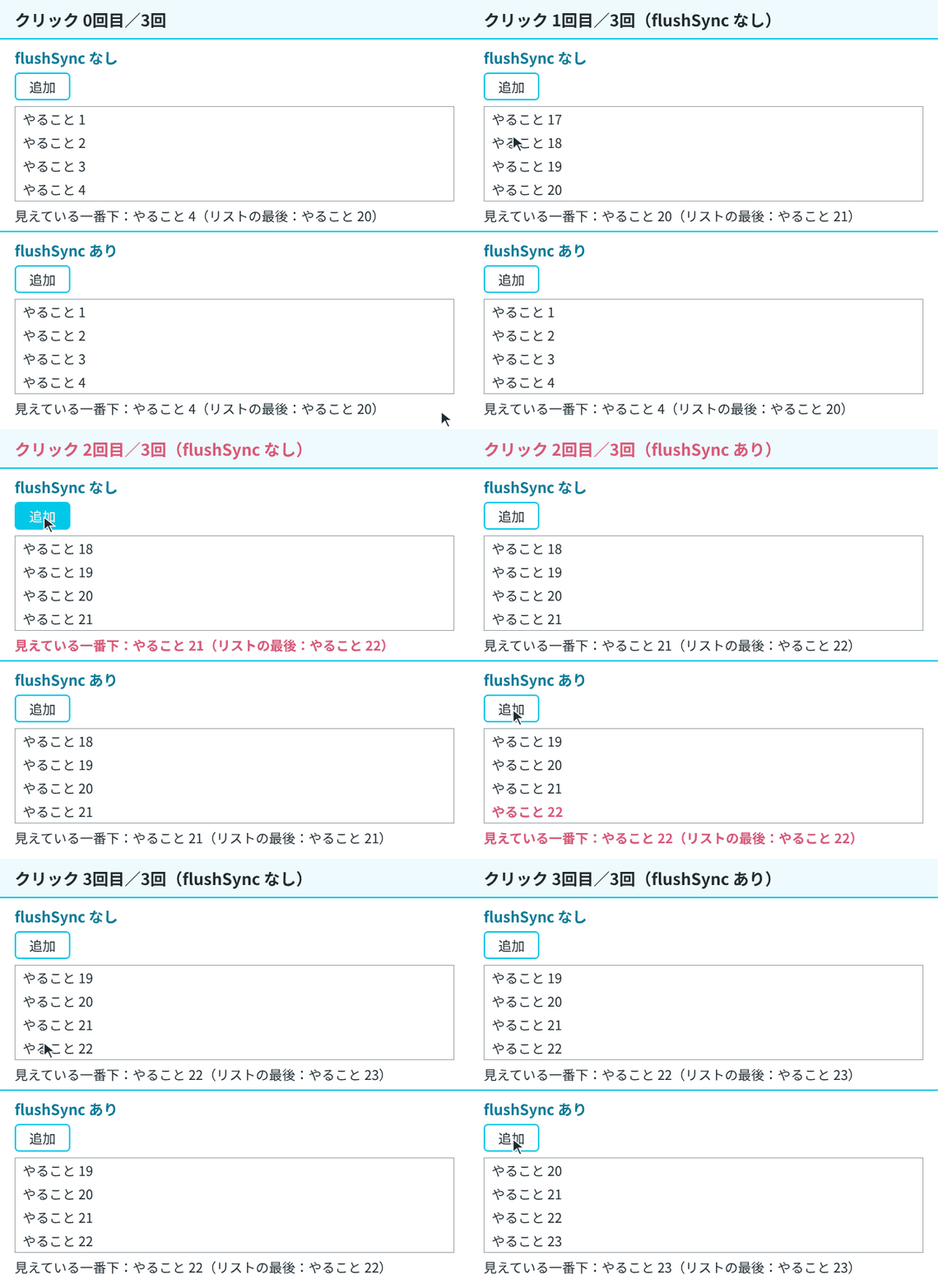
The "bottom visible" line below the list is a display I added with a script when recording the GIF; it is not drawn by the TodoList component. For readability, the GIF was recorded with a changed list height and font size, and the mouse cursor is drawn over the screen.
Changing the display right before printing
The official reference example that changes the display right before printing changes state in the browser's beforeprint event so that the printed content reflects it. I changed the display text in this example to Japanese, removed the print button, and made it possible to switch flushSync on and off.
import { useEffect, useState } from 'react';
import { flushSync } from 'react-dom';

// Change state right before printing (beforeprint) so the printed screen shows it
export function PrintApp({ useFlush }: { useFlush: boolean }) {
  const [isPrinting, setIsPrinting] = useState(false);
  useEffect(() => {
    function handleBeforePrint() {
      if (useFlush) {
        flushSync(() => {
          setIsPrinting(true);
        });
      } else {
        setIsPrinting(true);
      }
    }
    function handleAfterPrint() {
      setIsPrinting(false);
    }
    window.addEventListener('beforeprint', handleBeforePrint);
    window.addEventListener('afterprint', handleAfterPrint);
    return () => {
      window.removeEventListener('beforeprint', handleBeforePrint);
      window.removeEventListener('afterprint', handleAfterPrint);
    };
  }, [useFlush]);
  return <h1>印刷中: {isPrinting ? 'はい' : 'いいえ'}</h1>;
}
I did not open the print dialog. Instead, I used Playwright's page.pdf() to have Chromium output a PDF, and then extracted the text from the PDF.
--- PrintApp (without flushSync) --- screen before print="Printing: No" printed content="Printing: No" screen after print="Printing: No"
--- PrintApp (with flushSync) --- screen before print="Printing: No" printed content="Printing: Yes" screen after print="Printing: No"
Without the wrapper, the PDF showed "No". The official reference also says that without flushSync, the print dialog shows "no." This happens because React batches updates asynchronously, so the print dialog opens before the state update is applied. With the wrapper, the PDF showed "Yes". After printing, the screen showed "No" in both versions. With flushSync, it returned to "No" in afterprint. I did not test the print dialog opened by window.print().
It does not work inside effects
According to the official troubleshooting section, if you call flushSync during rendering, inside useEffect or useLayoutEffect, or inside a class component's lifecycle method, it does not take effect right away and only a warning is shown. The suggested fixes are to move the call into an event handler, or to defer it with queueMicrotask. I tested the version that calls it inside useEffect and the version that defers it with queueMicrotask.
import { useEffect, useRef, useState } from 'react';
import { flushSync } from 'react-dom';
import { say } from './log';

// Call flushSync inside an effect (a pattern the official docs say not to use)
export function FlushInEffect() {
  const [ready, setReady] = useState(false);
  const ref = useRef<HTMLParagraphElement>(null);
  useEffect(() => {
    flushSync(() => {
      setReady(true);
    });
    say(`  エフェクトで flushSync した直後: 画面=${ref.current!.textContent}`);
  }, []);
  return <p ref={ref}>{ready ? '準備できた' : '準備中'}</p>;
}

// Use queueMicrotask to call flushSync after the current render finishes
export function FlushInMicrotask() {
  const [ready, setReady] = useState(false);
  const ref = useRef<HTMLParagraphElement>(null);
  useEffect(() => {
    queueMicrotask(() => {
      flushSync(() => {
        setReady(true);
      });
      say(`  マイクロタスクで flushSync した直後: 画面=${ref.current!.textContent}`);
    });
  }, []);
  return <p ref={ref}>{ready ? '準備できた' : '準備中'}</p>;
}
These are the results of rendering in jsdom.
--- FlushInEffect ---
  エフェクトで flushSync した直後: 画面=準備中
  少し待った後: 画面=準備できた
  console.error: flushSync was called from inside a lifecycle method. React cannot flush when React is already rendering. Consider moving this call to a scheduler task or micro task.
--- FlushInMicrotask ---
  マイクロタスクで flushSync した直後: 画面=準備できた
  少し待った後: 画面=準備できた
  console.error: なし
When called inside useEffect, the warning appeared, and the screen right after the call still showed "Preparing." The state update itself was not discarded: after waiting a little, it showed "Ready." When I deferred the call with queueMicrotask, no warning appeared, and the screen right after the call showed "Ready."
However, the official reference presents the queueMicrotask approach as a last resort when no other option is available. It says that flushSync itself can hurt performance, and that this approach is even worse. If you want to call flushSync inside an effect, first consider whether you can move that update into an event handler.
Wrapping changes the number of renders
I updated three state values in one click and counted how many times the component rendered. With mode, I switched between not wrapping, wrapping all three in one flushSync, and wrapping each update in its own flushSync.
import { useState } from 'react';
import { flushSync } from 'react-dom';

export const renders = { count: 0 };

type Mode = 'plain' | 'oneFlush' | 'eachFlush';

// Update three states in one click, and count the number of renders
export function ThreeUpdates({ mode }: { mode: Mode }) {
  renders.count++;
  const [a, setA] = useState(0);
  const [b, setB] = useState(0);
  const [c, setC] = useState(0);
  function handleClick() {
    if (mode === 'plain') {
      setA(a + 1);
      setB(b + 1);
      setC(c + 1);
    } else if (mode === 'oneFlush') {
      flushSync(() => {
        setA(a + 1);
        setB(b + 1);
        setC(c + 1);
      });
    } else {
      flushSync(() => setA(a + 1));
      flushSync(() => setB(b + 1));
      flushSync(() => setC(c + 1));
    }
  }
  return <button onClick={handleClick}>{a}-{b}-{c}</button>;
}
These are the results of pressing the button once in each mode in jsdom.
--- ThreeUpdates mode=plain --- renders per click: 1 screen=1-1-1
--- ThreeUpdates mode=oneFlush --- renders per click: 1 screen=1-1-1
--- ThreeUpdates mode=eachFlush --- renders per click: 3 screen=1-1-1
The three updates grouped in one flushSync needed only one render, the same as without the wrapper. Wrapping each update separately caused three renders. The official caveats say that flushSync can significantly hurt performance. If you do need to wrap, group the updates that come before processing that uses the updated DOM into a single flushSync. In this test, doing so kept the render count at one, the same as without the wrapper.
Updates that were called earlier outside flushSync can also appear on the screen together with it. I called setA(1) outside flushSync in a click handler, then called setB(1) inside flushSync, and checked a component (Outside) that reads the screen right after. In jsdom, both a and b were 1.
--- Outside ---
  flushSync の直後: 画面=a=1 b=1
The same caveats also say that to apply the updates inside, React may first apply the outer updates too (such as updates caused by the click). They also say that it may cause a fallback to show at a Suspense boundary that is waiting to load. I did not test combinations with Suspense in this article.
A guideline for when to use flushSync
Use flushSync when you want to run processing that depends on the updated DOM right after updating state. In this test, those were scrolling to the added item and changing the display right before printing. Wrap only the updates that come before processing that uses the updated DOM, inside an event handler.
The official reference says that cases where flushSync is needed are rare, and that an app using only React's features, without combining them with other libraries, should not need it. On the other hand, it also says it can be useful when combined with browser APIs and similar. The scroll and print examples in this article were both combined with browser APIs. If you have no processing that uses the DOM right after an update, write the code without flushSync.